Using an SSL certificate on Vagrant for local development in Google Chrome

Two words: SSL Chrome! Some recent changes with Chrome can cause breaking changes in local development environments.
Problem #1: the website doesn't load
First problem? – Chrome updated itself and now my local development environment won't load. Instead of navigating to http://192.168.aa.bb I wanted to be able to navigate to tinaciousdesign.dev. You can learn how to do that by reading my blog post .dev domain extension for local development.
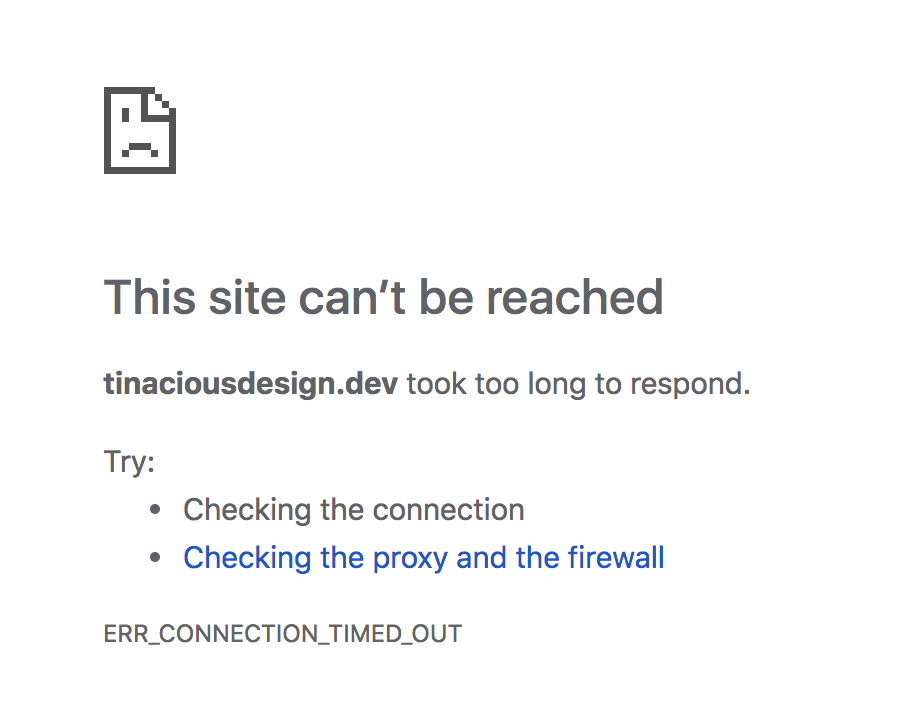
The problem occurs because Chrome automatically redirects all domains (other than localhost) from using HTTP to using HTTPS. It doesn't appear to do it for all domains on the internet, I realized later, but it did for this local domain. To solve this, you can follow a bunch of instructions on the internet on how to create an SSL certificate to use in Vagrant, which, at least in my case, resulted in a few failures, as follows.
Problem #2: my self-signed SSL certificate doesn't work
Another problem? – A big red lock that prevents you from doing local development in Google Chrome. My process was as follows:
- Generate a private RSA key
- Generate a certificate with that private key
- Tell Apache to use it
- Restart Apache
- Trust the certificate in macOS Keychain Access
- Restart Chrome and visit website
- See big red warning symbol 🙁😒
This is a good start, and this works in Safari (at the time of writing), but the problem with this is that there are many ways to create a self-signed SSL certificate, and Chrome is quite strict about what it accepts. Newer versions of Chrome do not allow you to bypass security issues anymore like they used to so if you want to access the site, you'll need to make Chrome trust it.
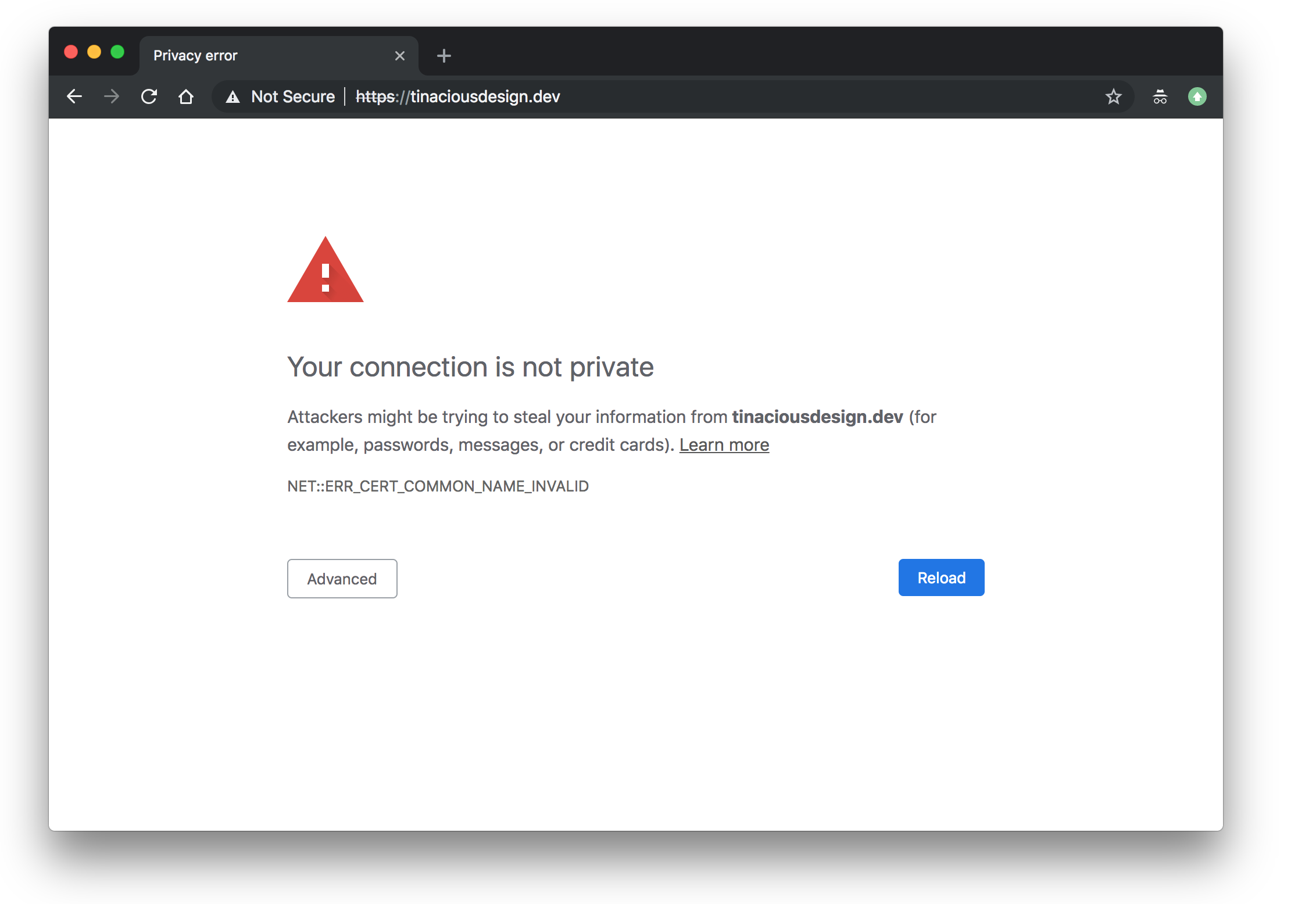
To get around this, you could easily switch to a different browser. For example, Safari isn't as strict, and the site loads fine using SSL in Safari. If that's a good enough answer for you, you can stop reading now. If you prefer using Google Chrome because of the developer tools, and you still want to use your custom dev domain, continue reading! In order to get Google Chrome to load the website at your-domain.dev, you'll need to properly create a self-signed certificate in the way that Google Chrome expects it.
Solution
In order to solve this, we will be creating a self-signed certificate for our domain using a root certificate, a domain CSR, and then trust the certificate authority for this certificate. More on all this will follow. You will need to have the openssl command line utility installed. You can do so with homebrew on Mac. We will do the following:
- Generate a private root key
- Generate a private root certificate
- Generate a domain Certificate Signing Request for our domain
- Generate the SSL certificate
- Tell our website to use the certificate
- Trust the certificate
- Restart Apache
- Restart Chrome
Generate a private root key
In the site project, create a directory called CA. We will put stuff there. Now generate a private key.
openssl genrsa -aes256 -out CA/rootCA.key 4096
Generate a private root certificate
This key will be used to generate a private root certificate.
openssl req -x509 -new -nodes -key CA/rootCA.key -sha256 -days 3650 -out CA/rootCA.crt
Generate a domain Certificate Signing Request
Next, we will generate a domain Certificate Signing Request (CSR):
A CSR (Certificate Signing Request) is a small, encoded text file containing information about the organization and the domain you wish to secure. It is required for the activation of a digital SSL certificate and, as a rule, is generated on the server where the certificate is to be installed. A CSR is submitted to the Certificate Authority and used to generate the certificate.
We will generate this for our domain. In this case, my domain is example.dev. Replace all instances of that in the following snippets with your domain name.
openssl req \
    -new \
    -nodes \
    -keyout example.dev.key \
    -out domain.csr \
    -days 3650 \
    -subj "/C=CA/L=ON/O=TD/CN=example.dev"
Generate an SSL certificate
Next we will need to generate a certificate with the domain Certificate Signing Request we just created.
openssl x509 \
    -req \
    -days 3650 \
    -sha256 \
    -in domain.csr \
    -CA CA/rootCA.crt \
    -CAkey CA/rootCA.key \
    -CAcreateserial \
    -out example.dev.crt \
    -extensions v3_ca -extfile <(
cat <<-EOF
[ v3_ca ]
subjectAltName = DNS:example.dev
EOF
)
Google Chrome requires that the Subject Alternative Names field be completed correctly. The output of all of my actions resulted in the following files being created:
.
├── CA
│   ├── rootCA.crt
│   ├── rootCA.key
│   └── rootCA.srl
├── Vagrantfile
├── domain.csr
├── tinaciousdesign.dev.crt
└── tinaciousdesign.dev.key
Tell Vagrant to use your certificate
Next you'll need to SSH into your Vagrant machine and tell it to use your new SSL certificate. Find the *.conf file in Vagrant. It should be in/etc/apache2/sites-enabled/. Once you've located it, you'll need to provide the following. I use Scotchbox for my WordPress environment provisioning, so my Apache config file looks like this:
    ServerAdmin webmaster@localhost
    ServerName scotchbox.local
    ServerAlias www.scotchbox.local
    DocumentRoot /var/www/public


    # Adding custom SSL certificate -- START
    ServerName tinaciousdesign.dev

    SSLEngine on
    SSLCertificateFile /var/www/tinaciousdesign.dev.crt
    SSLCertificateKeyFile /var/www/tinaciousdesign.dev.key

    #RedirectPermanent / https://tinaciousdesign.dev/
    # Adding custom SSL certificate -- END

    ErrorLog ${APACHE_LOG_DIR}/error.log
    CustomLog ${APACHE_LOG_DIR}/access.log combined
Don't forget to replace all instances of tinaciousdesign.dev with your domain name.
Trust your certificate in macOS Keychain Access
Now that you've created this awesome certificate, you'll need to tell your computer to trust the certificate authority since it's not trusted by default. Google Chrome uses macOS's Keychain Access to manage SSL certificates. After creating the perfect certificate, you'll need to trust it.
- Open Keychain Access
- Highlight the System section on the left
- Drag and drop your new certificate onto the System tab—my certificate is tinaciousdesign.dev.crt so this is what I dragged and dropped onto Keychain Access > System
- Navigate to your certificate and double click it
- In the dropdown "When using this certificate" choose "Always trust"
- Close the window to save your changes—this will prompt you for your administrator password
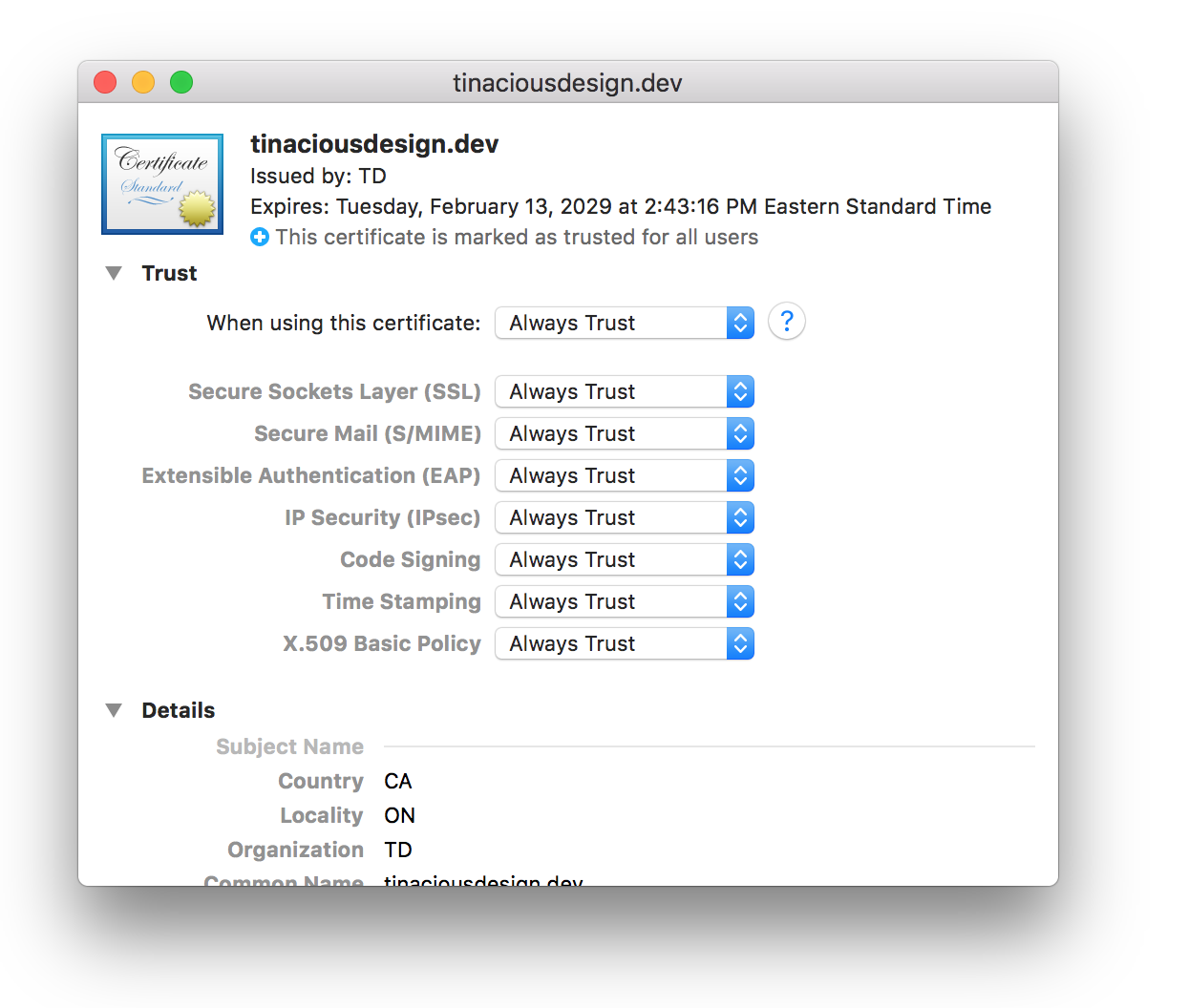
For obvious reasons, you only want to trust certificates you actually trust. Since we'll only be using this certificate locally, this is fine, but I don't recommend dropping random certificates in here and trusting them.
Restart Apache
You can restart Apache with the following command:
sudo service apache2 restart
Restart Google Chrome and load up your website
Restart Google Chrome to make sure it loads up your new, trusted certificate. There it is! It should be working now!
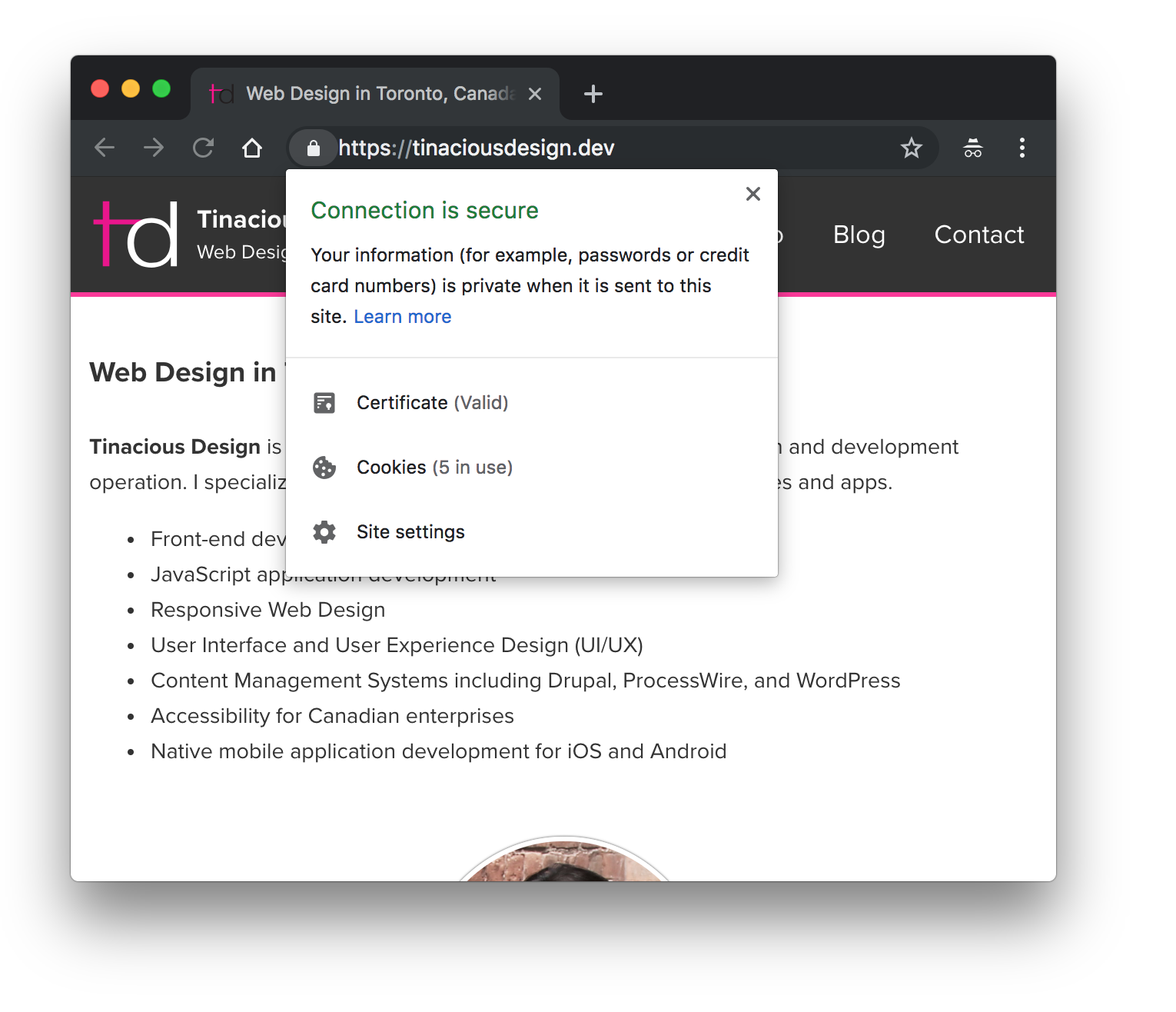
This article is accurate as of the time of posting. The version of Chrome at this time is Version 72.0.3626.109 (Official Build) (64-bit).
About the author
Hi, my name is Tina! I am a Full Stack Software Developer and Tech Lead from Canada. 🙋🏻♀️
Comments
Join the discussionNo comments yet. Be the first to comment.